Use the Group Finder to allow people to search, explore, and add themselves to groups, classes, ministry teams, and more! You control all filter options, including the ability to search geographically!
No more 'man-in-the-middle.' When an individual joins, it emails the group leader with an individual's contact information and *adds the individual to the group! *(if you set it to - not required).
Use our Pro-Tips below to create better organic connection opportunities!
1) Build Groups with as much information as possible.
Group Finder shines when your group profile is complete and inviting.
The image and details you provide help people get a feel for your group before they ever walk through the door.
While only the Group Name is required, we strongly recommend filling out all fields — Description, Leader(s), Address, and Meeting Day & Time — to give potential members a clear, confident picture of what your group is like. Adding a photo makes your group feel even more approachable.
You can also customize how your group appears in Group Finder Settings, including:
- Turning Group Finder on or off
- Choosing which categories people can search by
2) Decide how you would like individuals to add themselves.
- From your Group Finder, users can click 'Join' when they have found a group that fits their needs. While building Group Finder, you have the opportunity to determine whether users can automatically join a group or whether you can allow the group leader to approve a request to join a group.
-
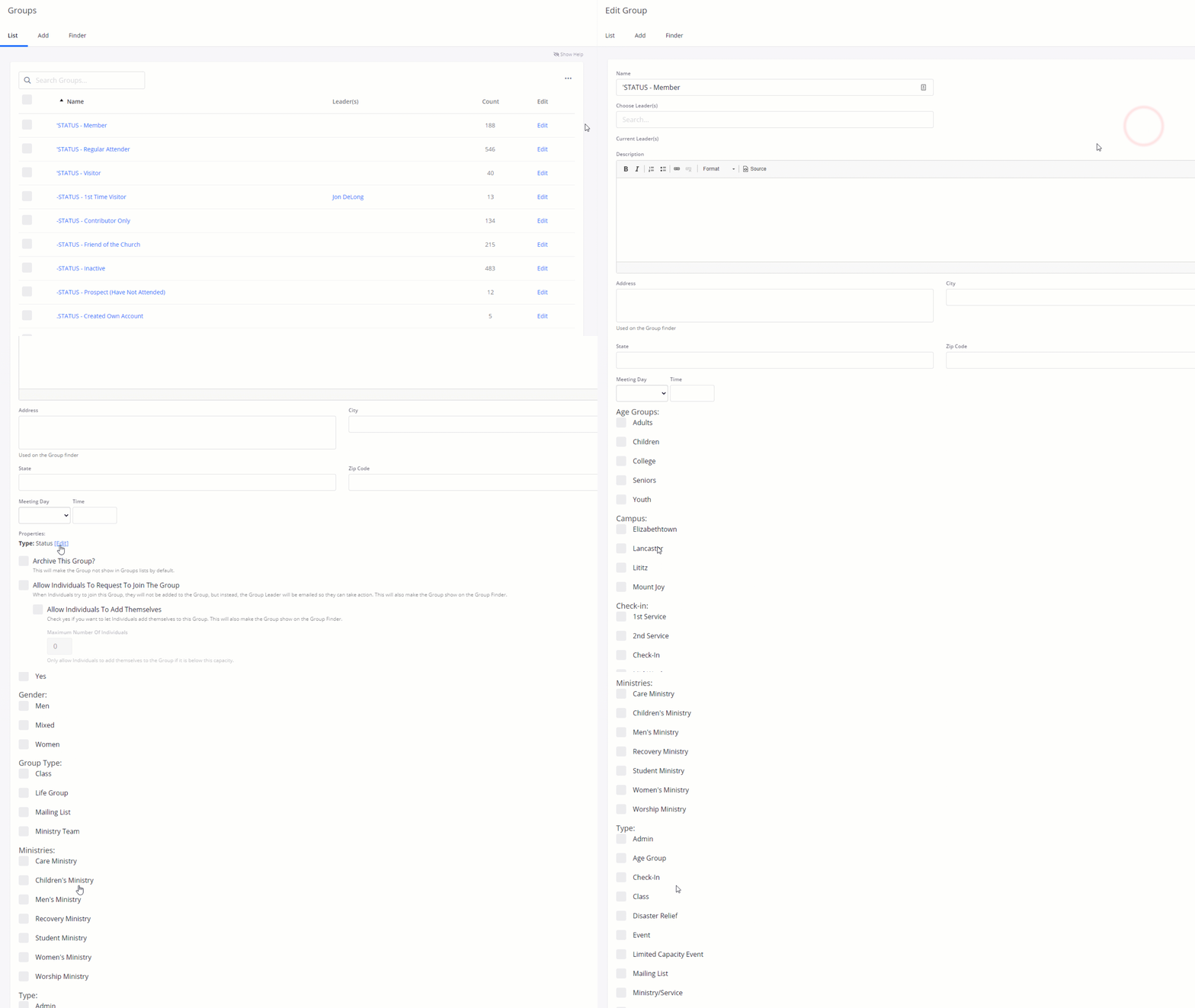
Allow Individuals To Request To Join The Group:
- When this option is selected, people who try to join the group will not be added automatically. Instead, the Group Leader(s) will be emailed and allowed to approve or deny the request.
- When this option is selected, people who try to join the group will not be added automatically. Instead, the Group Leader(s) will be emailed and allowed to approve or deny the request.
-
Allow Individuals To Add Themselves:
- When this option is selected, the Group Leader(s) will receive an email alerting them that an individual has joined the group.
- If this individual is not already in your Amplify People database, a new record and corresponding Admin Notification will be created.
-
Allow Individuals To Request To Join The Group:

Important Note: These two options are either/or. Only one can be active at a time, so make sure to determine which way you would like individuals to join your groups.
3) Utilize Group Properties.
- Build your Group Properties within your General settings
-
Gear Icon → Settings → Groups Tab → Group Properties
-
Gear Icon → Settings → Groups Tab → Group Properties
- In this management area, you can now start to define the properties that you want Your People Database to have as tagging options. The setup is simple: First, you can define a Category for the rest of the Properties to be added under.
- Apply the Group Properties to the desired Groups, allowing your users to see those properties and letting that help them decide which group to join.
4) Display the Group Finder on your website!
- Using the embed code found in your settings, choose a place on your website that will be easy to find and highlight the Group Finder. A great place could be under a ‘Get Connected!’ tab!
- The embed code can be found under Settings → Groups Tab → Group Finder
Learn More about Group Finder setup.
Updated