Objective
This article provides step-by-step instructions for sending a mass text message (SMS) to your members using the Mass Contact feature. By following these steps, you will be able to communicate important updates quickly and effectively with your congregation.
▶️ Watch a Video Overview (3:40)
This video may include some out-of-date images. Please follow the written steps below for the most accurate process. We appreciate your patience as we work to update our videos.
At a Glance
Access SMS by going to Mass Contact → New Message → Text Message (SMS)
Messages must be 612 characters or less
Use Groups or Recipients to choose who gets the message
Use the Shorten Links button to save space when adding URLs
Replies to SMS are delivered to the sender’s email address
Why Use SMS?
Text messaging is one of the fastest ways to reach your members—90% of text messages are opened within 15 minutes. Compared to email, SMS ensures urgent information gets noticed, especially by younger families and members who rely heavily on mobile devices.
Steps
1) Start a New SMS
-
From the left sidebar, select Mass Contact.
-
Click New Message.

-
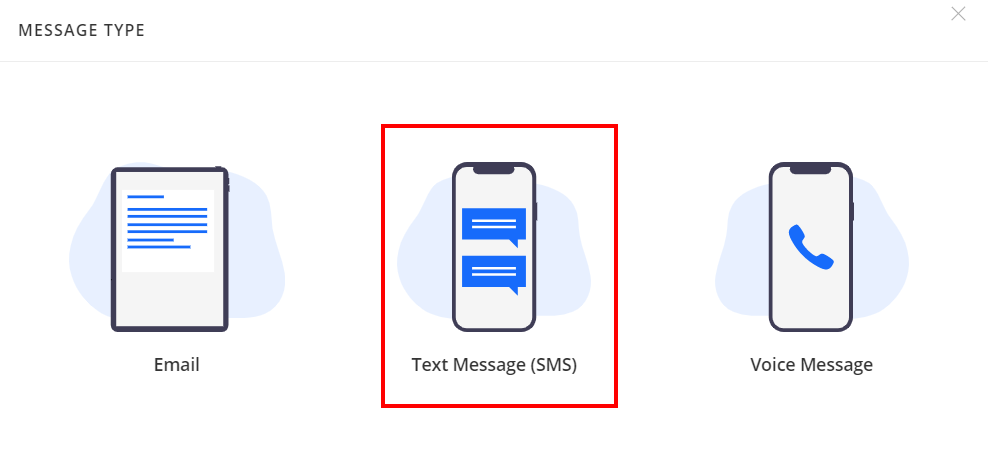
Choose Text Message (SMS).
-
⚠️ If this option doesn’t appear, you need to enable Text & Voice Messaging.
-
2) Choose Recipients
-
Use the search bar to select one or more Groups.
Click the gray “X” to remove any group.
Use Add Recipients to manually select individuals from the database.
Use Edit Recipients to uncheck specific people from the pre-populated list.
Include Options:
Group Members – All active members in the group(s)
Include Inactive – Adds inactive members too
Parents of Group Members – Sends to parents linked in Family Suite
Send to Yourself – Always recommended to preview the message
3) Compose Your Message
Add a Text Title (for internal reference only).
-
Type your message in the Body field.
Note: Text messages have a 612-character limit.
-
(Optional) Use placeholders:
@NAME for first name
@FULLNAME for full name
4) Share More Information with Links
To share more details, link to a webpage, form, or PDF form in your text message.
Copy the URL of your webpage.
Paste the link into your SMS body.
-
Click Shorten Links.
This shortens the URL to save character space.
The link lets recipients view the full content online.
The system tracks click counts so you can measure engagement.
5) Schedule or Send
To send immediately, click Send.
-
To schedule for later, select Schedule for Later, pick your date and time, and click Schedule.
Scheduled messages are tied to the user who created them.
6) Log & Track
SMS messages can be logged as an Interaction on recipient profiles.
Replies are delivered to the sender’s email address.
Mass Text Keywords for Opting In and Out
The texting system allows members to use the following keywords to manage their Text Message (SMS) notifications.
- "Start" → subscribe or resubscribe.
- Note: Use "Resume" to resubscribe if we are using our backup shortcode of 34166.
- "Stop" → unsubscribes the recipient and sends an email to the mass text sender.
- "Help" → Provides a list of the available SMS keywords, which are listed here.
Pro-Tip: Unsubscribed individuals are not currently displayed in your ChMS Software. To track individuals who have opted out, we recommend placing them in a group after you receive the email notification that they have unsubscribed. An example group name might be "Unsubscribed from SMS".)
FAQ
-
What does the Shorten Links button do?
It only shortens a URL, saving space in your message. It does not increase the SMS character limit.
-
What happens if someone replies to a mass text?
Replies are delivered via email to the sender’s email address.
-
How do members unsubscribe from texts?
Text Stop to opt out of text messages. The sender will receive an email notification when someone unsubscribes.
Important: Opting out of mass text communication is all-or-none. In other words, if an individual opts out of one text message from our SMS shortcode, they opt out of all future text messages from our shortcode.
Related Articles
Updated